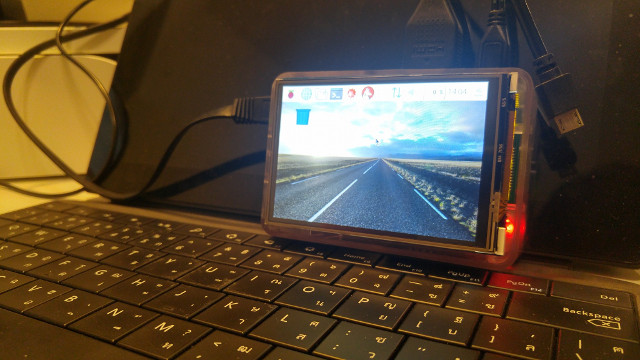
เนื่องจากมี project ส่วนตัวที่ต้องใช้จอ LCD ร่วมกับ Raspberry Pi ก็เลยเข้า Aliexpress ไปหามา ได้จอ 3.5 นิ้วของ WaveShare :smiley:
เมื่อได้ของมา ลองทดสอบดู ก็พบว่าไม่มี Driver สำหรับ Raspbian version ล่าสุด!!! :worried: :worried: เอาล่ะสิ งานเข้า ผู้ผลิตไม่มี Driver ให้ :cold_sweat: หลังจากที่งมมาได้ในระดับหนึ่ง ก็มีวิธีตามนี้ครับ
*** วิธีนี้สำหรับ raspberry Pi 2 เท่านั้น Raspberry Pi 3 ยังไม่สามารถใช้งานได้ ***
- Download และเตรียม Raspbian ให้พร้อมใช้งาน วิธีการก็ตาม Official Site
- update raspbian ให้เป็น version ล่าสุด ด้วยคำสั่ง
sudo apt-get update && sudo apt-get upgrade && sudo apt-get dist-upgrade- Install git และ vim
sudo apt-get install git vim- Clone WaveShare LCD Device Tree Overlays โดย swkim01 ลงที่ Pi {{< highlight bash >}} git clone https://github.com/swkim01/waveshare-dtoverlays.git {{< / highlight >}}
- Copy ไฟล์ overlay ไปยัง /boot/overlays {{< highlight bash >}} sudo cp waveshare-dtoverlays/waveshare35a-overlay.dtb /boot/overlays/waveshare35a.dtbo {{< / highlight >}}
- เปิดไฟล์ /boot/config.txt ด้วย vi {{< highlight bash >}} sudo vi /boot/config.txt {{< / highlight >}}
- เพิ่ม config ด้านล่าง ให้เรียกใช้ overlay และ SPI และทำการ save {{< highlight text >}} dtparam=spi=on dtoverlay=waveshare35a {{< / highlight >}}
- เปิดไฟล์ /boot/cmdline.txt ด้วย vi {{< highlight bash >}} sudo vi /boot/cmdline.txt {{< / highlight >}}
- เพิ่ม config โดยต่อท้ายของเดิม ให้ display console ออกทางหน้าจอ LCD {{< highlight text >}} fbcon=map:10 fbcon=font:ProFont6x11 {{< / highlight >}}
- แก้ไขไฟล์ /usr/share/X11/xorg.conf.d/99-fbturbo.conf ด้วย vi โดยแก้ค่าจาก /dev/fb0 เป็น /dev/fb1
- สร้าง driver touchscreen ด้วยการสร้างไฟล์ที่ /etc/udev/rules.d/95-ads7846.rules โดยมีเนื้อหาตามด้านล่าง {{< highlight text >}} SUBSYSTEM==“input”, KERNEL==“event[0-9]”, ATTRS{name}==“ADS7846”, SYMLINK+=“input/touchscreen” {{< / highlight >}}
- สร้างไฟล์เก็บค่า calibation หน้าจอด้วยการสร้างไฟล์ที่ /etc/pointercal โดยมีเนื้อหาตามด้านล่าง {{< highlight text >}} -26 -8689 33949688 -5739 -126 22326060 65536 {{< / highlight >}}
- สร้างไฟล์ touchscreen สำหรับ X11 ที่ /etc/X11/xorg.conf.d/99-calibration.conf {{< highlight text >}} Section “InputClass” Identifier “calibration” MatchProduct “ADS7846 Touchscreen” Option “Calibration” “3932 300 294 3801” Option “SwapAxes” “1” EndSection {{< / highlight >}}
- reboot ก็เป็นอันเสร็จสิ้น ถ้าใช้งานได้จะขึ้นเป็น GUI ของ Pixel ขึ้นมาที่หน้าจอตามรูป